Operating system
OS operation
8086 Microprocessor and os connection Discussion
Fig. 2.6 & 2.7: A dongle is a small, portable hardware device that plugs into a port (usually USB or HDMI) on a computer or other electronic device to provide additional features or functionality. Fig. 2.6 & 2.7: A dongle is a small, portable hardware device that plugs into a port (usually USB or HDMI) on a computer or other electronic device to provide additional features or functionality.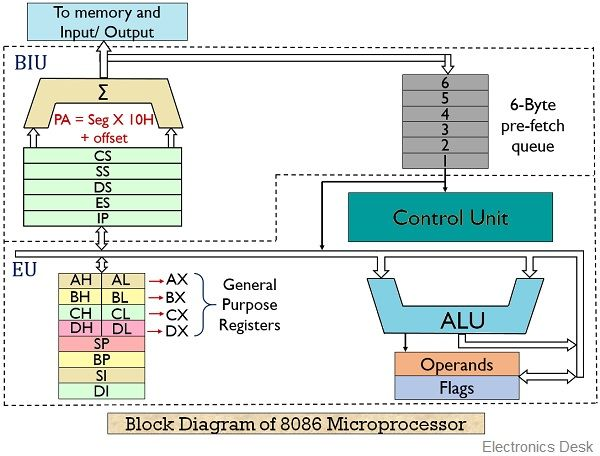
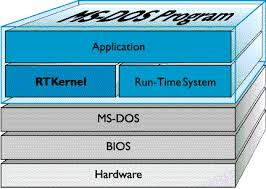
File Systems in Operating System.
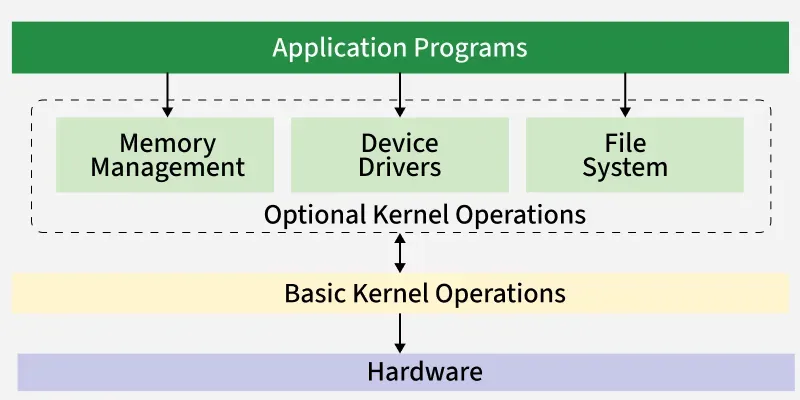
Fig. 2.6 & 2.7: A dongle is a small, portable hardware device that plugs into a port (usually USB or HDMI) on a computer or other electronic device to provide additional features or functionality.
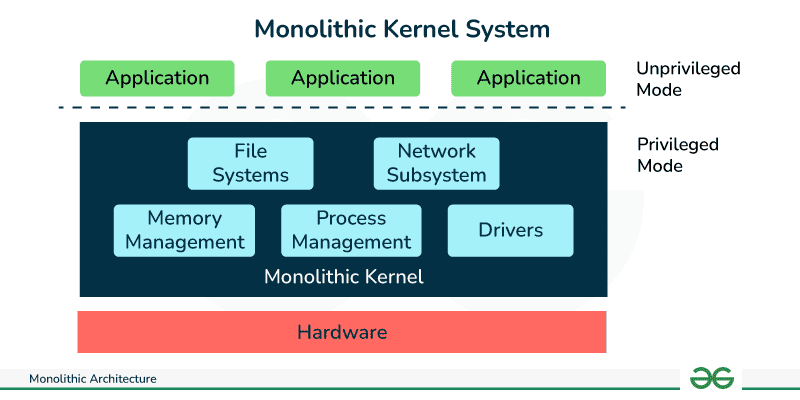
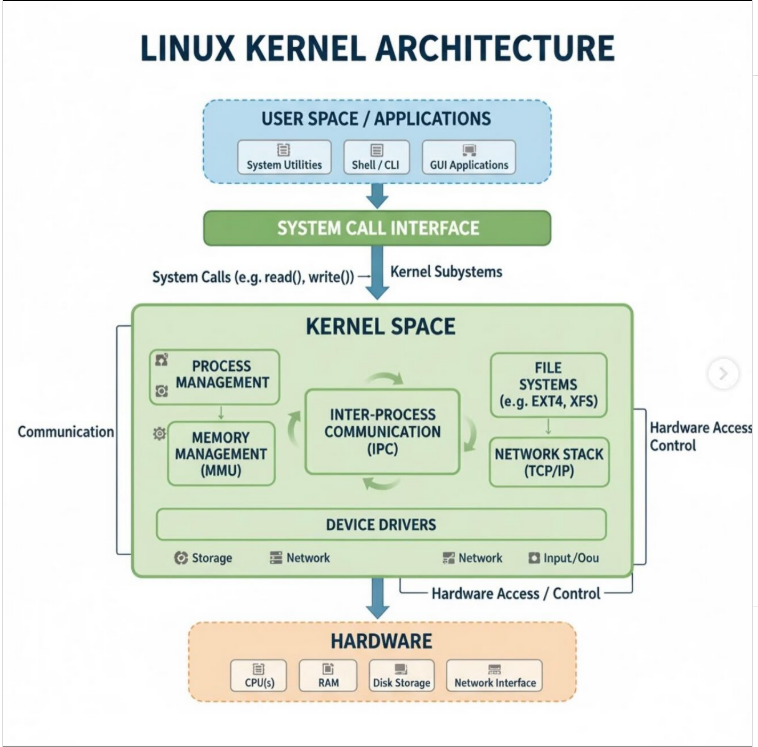
Kernel.
Fig. 2.6 & 2.7: A dongle is a small, portable hardware device that plugs into a port (usually USB or HDMI) on a computer or other electronic device to provide additional features or functionality. Fig. 2.6 & 2.7: A dongle is a small, portable hardware device that plugs into a port (usually USB or HDMI) on a computer or other electronic device to provide additional features or functionality. Fig. 2.6 & 2.7: A dongle is a small, portable hardware device that plugs into a port (usually USB or HDMI) on a computer or other electronic device to provide additional features or functionality.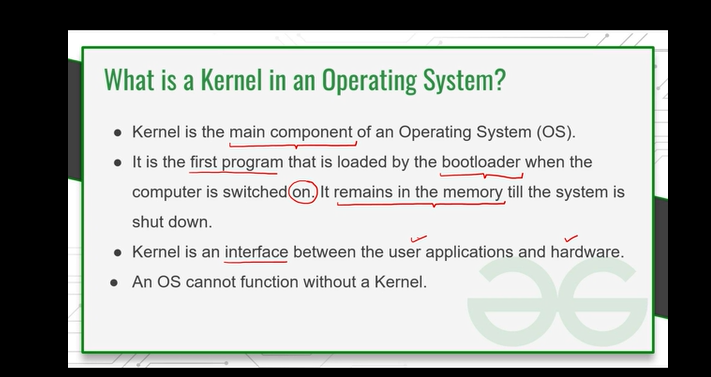
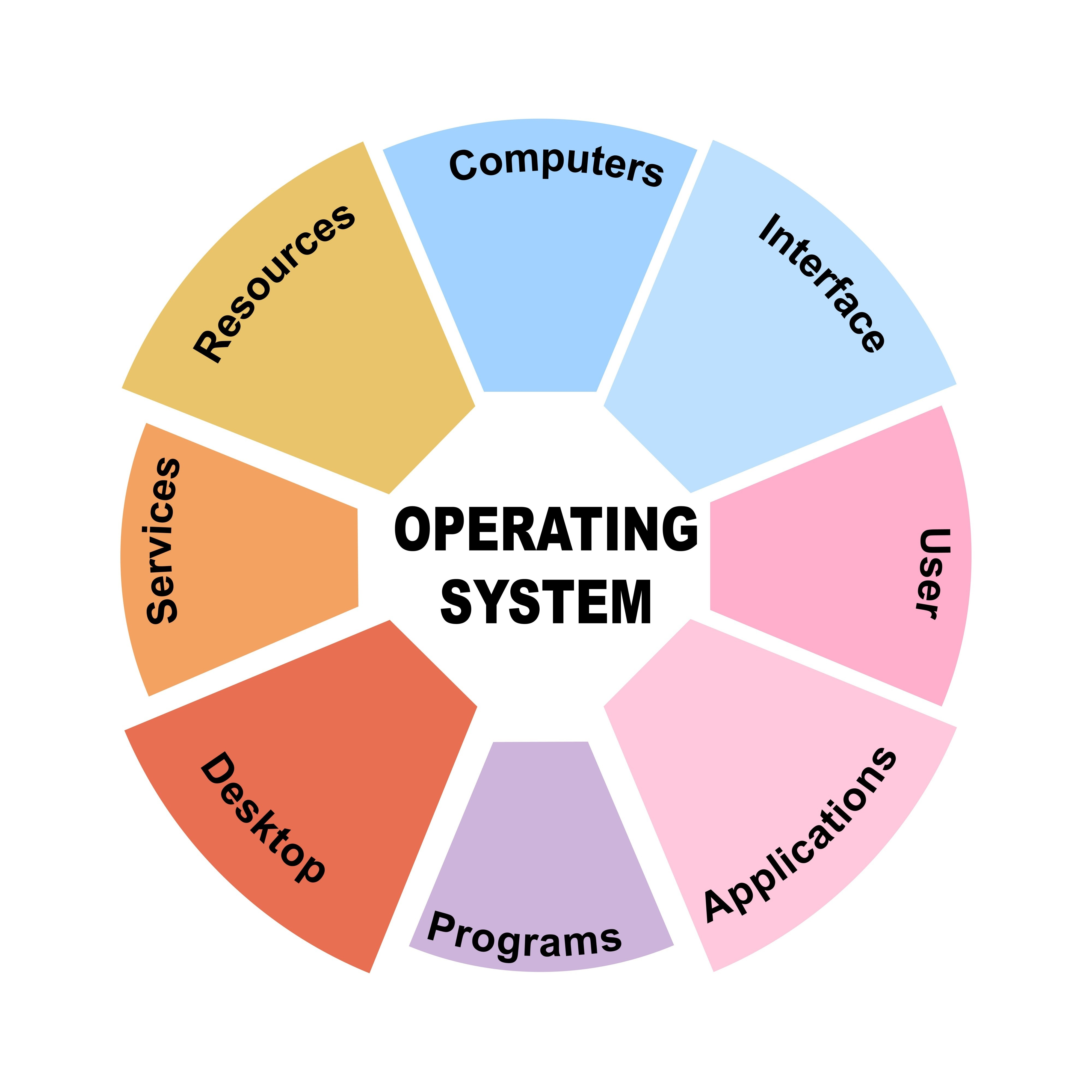
What is an Operating System
An Operating System is software that manages computer hardware. It acts as an intermediary between the user and the hardware.
- Ubiquity: It is everywhere—smartphones, PCs, cars, and even smart home devices (IoT).
- Primary Responsibility: To allocate hardware resources like memory, CPU time, and storage efficiently among various programs.
What Operating Systems Do
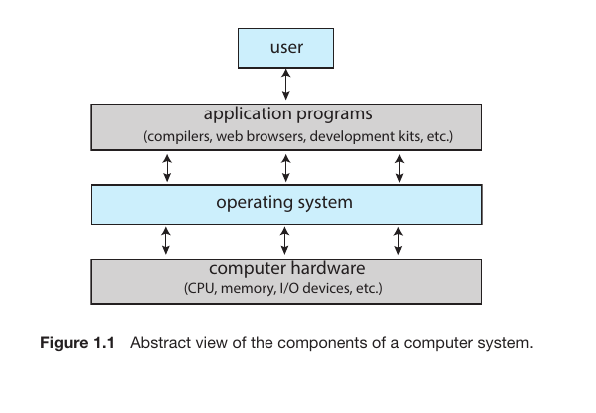
A computer system can be divided into four main components:
- Hardware: The CPU, memory, and I/O devices.
- Operating System: Controls the hardware and coordinates its use among applications.
- Application Programs: Tools like word processors, games, and browsers.
- Users: People, machines, or other computers using the system.
Operating system role two view point
Question: What is meant by “Operating System Role Two Viewpoint”?
Answer: The role of an operating system is one—to create an interface between hardware and software and to manage resources. But this same role can be viewed from two perspectives (viewpoints)—
User View: The user sees the OS as an easy and user-friendly medium through which they run applications and do their work.
System View: From the system’s perspective, the OS is a resource allocator (which distributes CPU, memory, etc.) and a control program (which controls errors and unauthorized activities).
Comparison: User View vs. System View
| Point of Comparison | User View | System View |
|---|---|---|
| Primary Goal | To maximize Ease of Use and convenience for the user’s tasks or entertainment. | To maximize Efficiency and ensure hardware resources are used optimally. |
| Perspective | The user sees the computer as a service provider or a functional interface. | The computer sees the OS as a manager, resource allocator, or controller. |
| Resource Management | The user is generally unaware of resource sharing or how the hardware is functioning. | The OS takes full responsibility for distributing and allocating resources (CPU, Memory, etc.). |
| Role | Provides a user-friendly interface (GUI, Touch, Voice). | Acts as a Resource Allocator and a Control Program. |
| Example | A gamer wants the game to run smoothly with high-quality graphics. | The OS ensures the game does not crash other processes or monopolize the CPU/Memory unfairly. |
Why Study Operating Systems?
- Understanding the Foundation: It explains how code actually talks to hardware.
- Better Performance: You learn to manage memory and CPU usage to make apps run faster.
- Solving Complex Bugs: You get the tools to fix difficult issues like crashes and data corruption.
- Security: You learn how the system protects itself from malicious software.
- Career Growth: Major tech companies prioritize OS knowledge during interviews because it proves you understand how computers truly work.
- Modern Tech: Technologies like the Cloud and Docker are built directly on OS principles.
Operating system consists of three main components:
- Kernel: The core part of the OS that runs at all times while the computer is on. It is the “heart” of the system.
- Middleware: Additional frameworks that support databases, multimedia, or graphics.
- System Programs: Programs that are not part of the kernel but help in managing and operating the system.
Interrupts
An Interrupt is a signal sent by hardware to the CPU to indicate that an event has occurred or a task is complete.
How an Interrupt Works (Step-by-Step)
- Suspending the CPU: When an interrupt occurs, the CPU immediately stops its current task.
- Saving State: The CPU saves its current location (Address) and status so it can return to it later.
- Interrupt Service Routine (ISR): The CPU jumps to a fixed memory location where the code to handle the interrupt (ISR) is stored.
- Resuming Work: Once the ISR is finished, the CPU retrieves the saved state and resumes its previous task exactly where it left off.
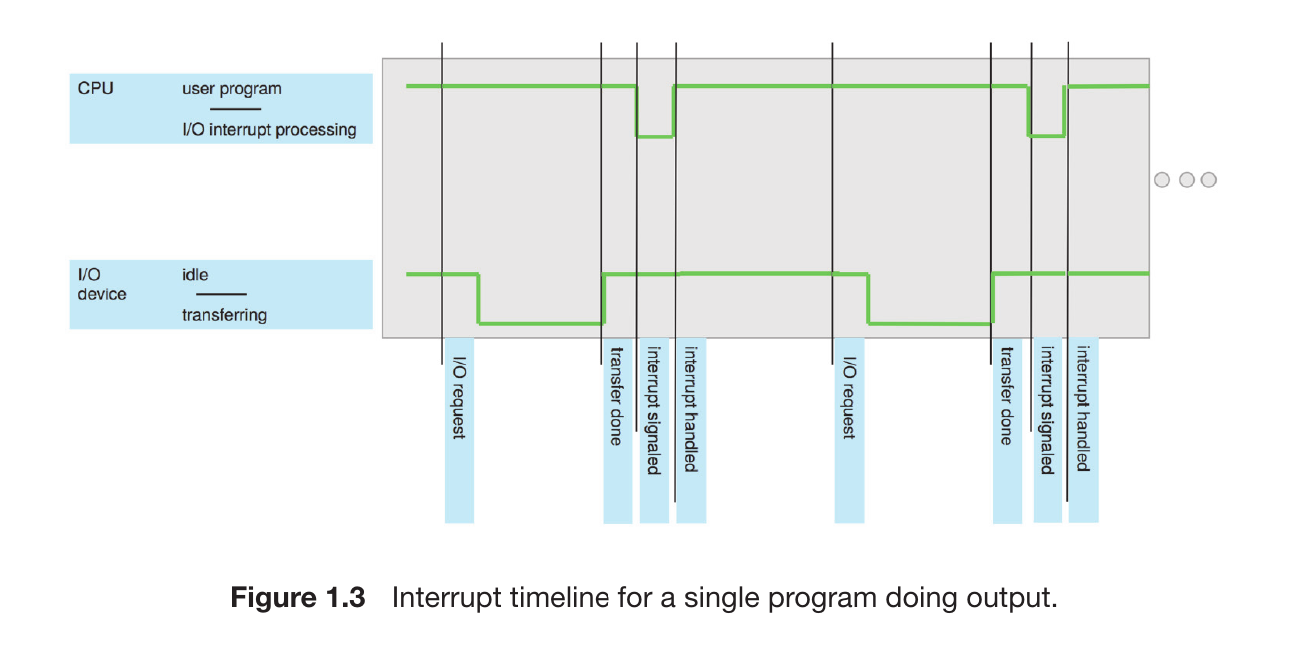
FigureBreakdown (Timeline): While a user program is running, the I/O device might be idle. When an I/O request is made, the device starts transferring data. Once finished, it signals an interrupt. The CPU pauses the user program, handles the interrupt, and then returns to the user task.
How the 7 Steps Work Here:
- Driver Initialization: When you click ‘Copy,’ the CPU tells the USB Device Driver: “Start reading this file.”
- I/O Starts: The USB drive begins reading data. During this time, the CPU doesn’t sit idle; it continues processing your Music Player.
- Interrupt Signal: Once a small chunk of the movie file is ready, the USB controller sends an Interrupt Signal to the CPU. It’s like saying, “Hey! The data is ready, look at me for a second!”
- CPU Receives Interrupt: Right after processing a beat of music, the CPU detects the signal. It pauses the music for a split second (a millisecond) and jumps to the Interrupt Handler.
- Data Processing: The Interrupt Handler takes the data chunk from the USB and moves it to your Computer’s Hard Drive.
- Resuming Work: As soon as that chunk is processed, the CPU goes back to playing the music. The switch is so fast that you don’t even notice a skip in the song.
- Cycle Completion: This happens thousands of times until the whole movie is copied. A final interrupt triggers the OS to show the message: “Copy Complete.”
| Phase | What’s Happening? |
|---|---|
| Steps 1-2 (The Start) | You start copying the movie, but the CPU keeps the music playing. |
| Steps 3-4 (The Interrupt) | The USB drive knocks on the CPU’s door; the CPU pauses the music to check. |
| Step 5 (Processing) | The CPU moves the file data to the destination disk. |
| Step 6 (The Return) | The CPU immediately goes back to playing your song. |
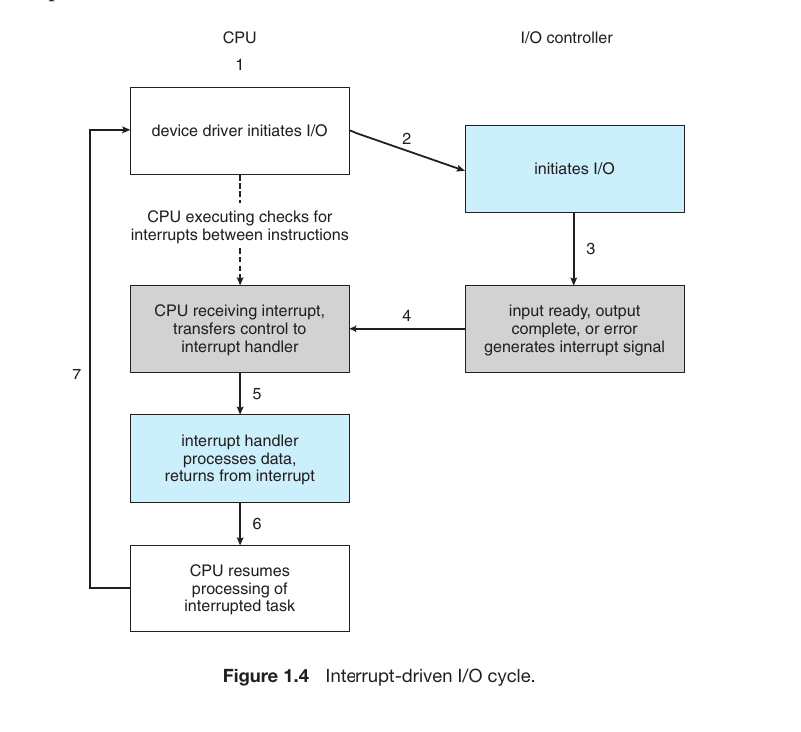
An example of an interrupt is typing on a keyboard:
- Action: You press the ‘A’ key while watching a movie.
- The Signal: The keyboard controller sends an electrical signal (Interrupt) via the System Bus to the CPU. It’s like “knocking on the CPU’s door.”
- The Pause: The CPU pauses the movie processing but saves the exact frame/second it was on.
- The ISR: The CPU runs the ISR to identify that ‘A’ was pressed and sends that data to the screen.
- The Resume: After displaying ‘A’, the CPU immediately goes back to playing the movie.
Storage Structure
Computers store data and programs in different locations based on their needs.
- Main Memory (RAM): The CPU can only load instructions directly from main memory. Therefore, any program must be moved to RAM before it can run. It is Volatile, meaning data is lost when the power is turned off. It is typically built using DRAM technology.
- Bootstrap Program: When a computer starts, a small program called the bootstrap program loads the OS. This is usually stored in Firmware (EEPROM).
- Secondary Storage: Since RAM is small and volatile, secondary storage (like HDD, SSD, or NVM) is used to store data permanently.
Storage Units
| Unit (Decimal) | Value (Bytes) | Unit (Binary) | Value (Bytes) | Difference |
|---|---|---|---|---|
| KB (Kilobyte) | $1,000$ | KiB (Kibibyte) | $1,024$ | 2.4% |
| MB (Megabyte) | $1,000,000$ | MiB (Mebibyte) | $1,048,576$ | 4.9% |
| GB (Gigabyte) | $1,000,000,000$ | GiB (Gibibyte) | $1,073,741,824$ | 7.4% |
Storage Hierarchy
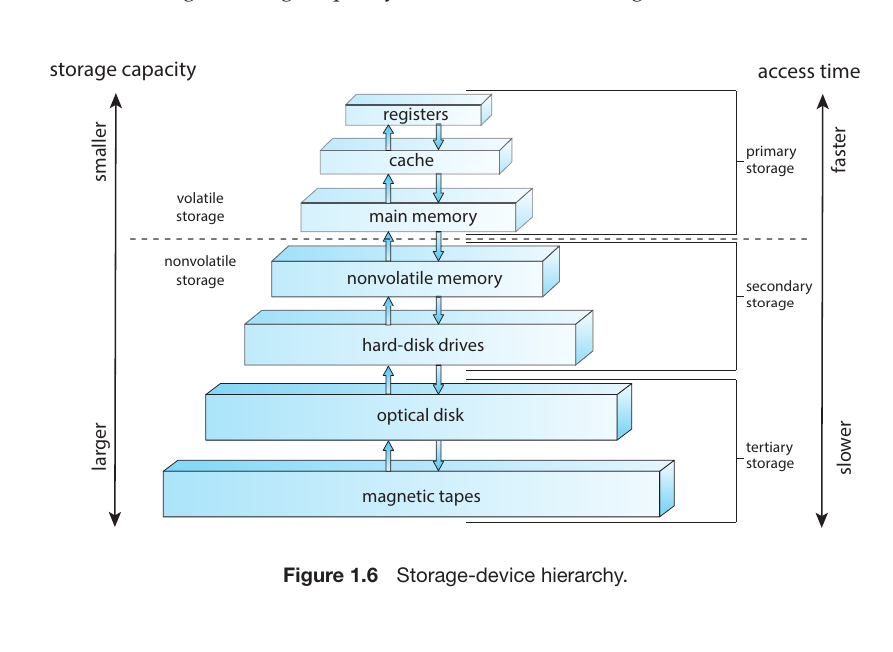
The storage components are organized in a pyramid structure. As you move up the pyramid:
- Speed: Increases (Faster).
- Cost: Increases (More expensive).
- Capacity: Decreases (Smaller storage space).
The Layers (From bottom to top):
- Magnetic Tapes & Optical Disks: Very slow, but can store massive amounts of data for a long time (Tertiary Storage).
- Hard-Disk Drives (HDDs): Standard high-capacity permanent storage.
- Non-volatile Memory (SSD/NVM): Much faster than traditional hard drives.
- Main Memory (RAM): The workspace for the CPU.
- Cache: High-speed memory that bridges the speed gap between the CPU and RAM.
- Registers: Located inside the CPU; these are the fastest storage elements in the system.
I/O Structure and DMA
While standard Interrupt-driven I/O is great for small data transfers (like a mouse click), it becomes inefficient for large data transfers (like copying a movie). Constant interrupts would overwhelm the CPU. To solve this, Direct Memory Access (DMA) is used.
- How it works: A special controller (DMA Controller) takes over the data transfer process. It moves data blocks directly between the hardware device and main memory without involving the CPU for every byte.
Although DMA is hardware that require software (specifically Device Drivers) to function. The driver tells the DMA hardware:
- The source of the data.
- The destination in memory.
- The total size of the data to be moved.
- The Advantage: The CPU only gets interrupted once after the entire block of data is transferred. This frees up the CPU to perform other tasks while the data is being moved.
Single-Processor Systems
In the past, most systems had only one main CPU. It executed instructions sequentially. While there were special-purpose processors for specific tasks (like keyboard controllers), they could not run general user programs. These systems are rare in modern computing.
Multiprocessor Systems
Modern computers use multiple processors. This design offers three major benefits:
- Increased Throughput: More work gets done in less time.
- Economy of Scale: It is cheaper to have multiple processors sharing the same storage and power supply than to have multiple separate computers.
- Increased Reliability: If one processor fails, the system doesn’t crash; it just slows down as the remaining processors take over the load.
Types of Multiprocessing:
- Symmetric Multiprocessing (SMP) Each processor performs all tasks, and all processors share the same physical memory. They are treated as equals.
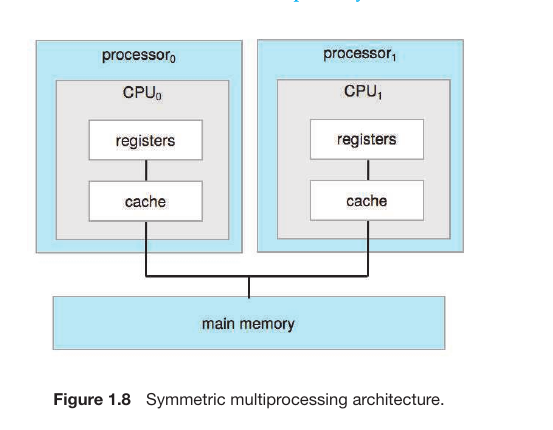
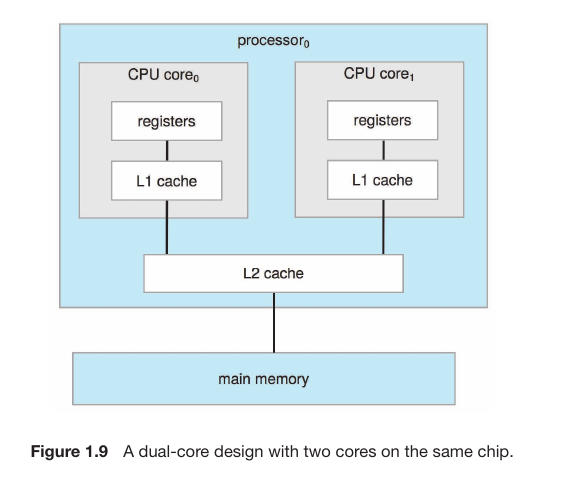
- Dual-Core / Multi-Core Design Multiple processing “cores” are placed on a single chip. Each core has its own L1 Cache, but they usually share an L2 Cache. This design is highly efficient for saving battery life in laptops and mobiles.
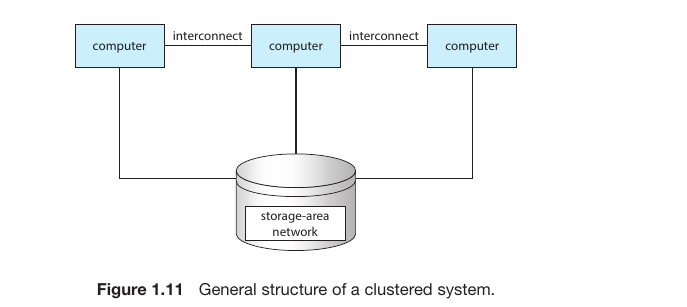
Cluster system
Operating-System Operations
Multiprogramming(basic idea)
In a simple system, a single program cannot keep the CPU and I/O devices busy at all times. When a program waits for an I/O task (like waiting for a user to type), the CPU sits idle. Multiprogramming was designed to solve this waste of resources.
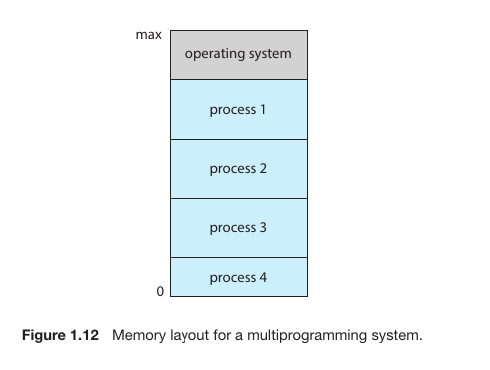
- The Core Idea: Multiple programs or processes are kept in the Main Memory (RAM) at the same time.
- How it Works: When the current program needs to wait for I/O, the Operating System automatically switches the CPU to another program that is ready to run.
- Main Goal: To increase CPU Utilization (ensure the CPU is always working).
Multitasking (Time-Sharing)(Mordrn versio of multiprograming)
Multitasking is a logical extension of multiprogramming. While multiprogramming aims to keep the CPU busy, multitasking aims to provide a fast Response Time for the user.
- How it Works: The CPU switches between programs so frequently (often every few milliseconds) that the user feels all programs are running simultaneously.
- Interactive Computing: It allows for a “dialogue” between the user and the computer. For example, you can type in a document while a song plays in the background; the CPU switches between these tasks thousands of times per second.
- Main Goal: To improve User Interaction and minimize response time.
Key Differences
| Feature | Multiprogramming | Multitasking (Time-Sharing) |
|---|---|---|
| Primary Goal | Maximize CPU usage. | Minimize user response time. |
| Switching Logic | Switches when a program waits for I/O. | Switches based on a tiny time slice (Time Quantum). |
| User Interaction | Low (User might have to wait). | High (User feels the system is “live”). |
Timer
A Timer is used to prevent a user program from monopolizing the CPU for an indefinite period (for example, if a program gets stuck in an infinite loop).
- Fixed Time Interval: The Operating System sets the timer to trigger an interrupt after a specific period (often called a time slice or time quantum).
- Preventing CPU Hogging: When the timer reaches zero, it sends a hardware interrupt to the CPU.
- Regaining Control: Once the interrupt occurs, the system switches from User Mode back to Kernel Mode. Control is handed back to the Operating System, which can then decide whether to let that program continue or switch to another task.
Resource Management
| Field | Core Task |
|---|---|
| Process | Scheduling and completing tasks (programs). |
| Memory | Ensuring RAM is used correctly and efficiently. |
| Storage | Organizing and managing the file system (folders/files). |
| I/O | Managing hardware like the keyboard, mouse, or display. |
1. Protection and Security
When multiple users or many programs (processes) run simultaneously, the OS must control access to data and resources.
Protection: This is an internal mechanism. It ensures that one program cannot interfere with another program’s memory or data.
Example: The OS ensures a specific file can only be opened by a user who has the correct permissions.
Security: This focuses on defending the system against external threats. This includes viruses, worms, hacking, or Denial-of-Service (DoS) attacks.
User Identifiers (User IDs): The OS assigns a unique ID (like a SID in Windows) to every user. This helps the system track who is allowed to perform specific actions.
2. Virtualization
Virtualization is a technology that allows a single physical computer’s hardware to be used to create multiple separate computing environments.
- Virtual Machine (VM): This allows a Guest OS to run inside a Host OS. It feels like having several smaller computers running inside your main computer.
- Emulation: Used when the Guest OS hardware requirements differ from the Host hardware (e.g., running old Intel apps on new Apple Silicon). It translates instructions but is usually slower.
- Virtual Machine Manager (VMM): Also called a Hypervisor (e.g., VMware), this software manages hardware resources and keeps each virtual machine isolated from the others.
Understanding
- (a) Traditional System: A single Kernel sits directly on the hardware and handles all processes.
- (b) Virtual Machine System: A VMM sits on the hardware. On top of the VMM, multiple virtual machines (VM1, VM2, VM3) operate. Each VM has its own kernel and its own set of processes.
Distributed Systems
A Distributed System is a collection of separate, physically distinct computers connected by a network. To the user, it appears as a single, highly powerful system working on their behalf.
Kernel Data Structures
What is a Bitmap?
A Bitmap (or bit-vector) is an array or a list of bits where each individual bit represents the status of a specific resource. In most operating systems:
- 0 (Zero): Indicates the resource is Free.
- 1 (One): Indicates the resource is Allocated (Busy).
Where is it Used
The Operating System primarily uses bitmaps in two main areas:
- Memory Management: The RAM is divided into small blocks. A bitmap tracks which blocks are occupied by programs and which are empty.
- Disk Storage: File systems use bitmaps to quickly find free blocks on an HDD or SSD to save new files.
How It Works (Example)
Imagine your memory has 8 blocks. The 1st, 3rd, and 5th blocks are currently in use, while the rest are empty. The bitmap would look like this: 1 0 1 0 1 0 0 0 (The 1st bit ‘1’ means booked; the 2nd bit ‘0’ means free, and so on.)
Computing Environments.
1. Traditional Computing
In the past, this meant a “standalone” PC or mainframe. Today, it has changed significantly:
- Always Connected: Almost all traditional systems are now networked.
- Web-Based: Much of our work is done through a web browser rather than software installed locally.
- Security Focused: Firewalls and wireless networks (Wi-Fi) are now standard parts of this environment.
2. Client-Server Computing
This is the most common network structure.
- Client: The device that requests a service (e.g., your smartphone or laptop).
- Server: The powerful computer that fulfills the request (e.g., Google’s search engine or Netflix’s movie database).
3. Peer-to-Peer Computing (P2P)
In this environment, there is no central server. Every computer (node) is equal.
- Dual Role: Each PC acts as both a client and a server at the same time.
- Direct Sharing: Files or data move directly from one user to another.
- Examples: BitTorrent, Blockchain, or Skype calls.
4. Cloud Computing
Cloud computing delivers computing services (servers, storage, software) over the internet. Instead of buying hardware, you “rent” it.
- SaaS (Software as a Service): Using apps online like Google Docs or Gmail.
- IaaS (Infrastructure as a Service): Renting raw processing power or storage (e.g., Amazon AWS or Microsoft Azure).
5. Mobile Computing
This environment is built specifically for portable devices like smartphones and tablets.
- Key Features: Mobility, GPS-dependence, and cellular connectivity (4G/5G).
- Interface: Focuses on touch-screens and voice commands instead of physical keyboards.
6. Real-Time Embedded Systems
These are specialized chips inside non-computer devices.
- Strict Timing: They must provide results within a specific time limit (Time Constraint).
- Examples: A car’s airbag system, microwave controls, or medical devices.
7. Virtualization
As discussed earlier, this involves using a Virtual Machine Manager (VMM) to run multiple “virtual” computers on a single piece of physical hardware. It maximizes hardware efficiency and reduces costs.
Comparison of Computing Environments
| Environment | Main Focus | Example |
|---|---|---|
| Traditional | Individual PC usage | Home desktop |
| Client-Server | Centralized Management | Websites, Email |
| P2P | Decentralized Sharing | Torrent, Bitcoin |
| Cloud | Resource Sharing/Rental | Google Drive, AWS |
| Mobile | Portability | Smartphone Apps |
| Embedded | Specific dedicated tasks | Car braking systems |
What is an Open-Source OS
An Open-Source OS is software where the Source Code is made available to the public. Unlike “Closed-source” or proprietary systems (like Windows or macOS), anyone can inspect, modify, and redistribute the code.
Key Examples
- GNU/Linux: The most famous example.
- History: Linus Torvalds created the Linux kernel in 1991. It was combined with Richard Stallman’s GNU project tools to form a complete OS.
- Distributions (Distros): Because the code is free, various groups create their own versions, such as Ubuntu, Fedora, Debian, Red Hat, and CentOS.
* G: GNU's
* N: Not
* U: Unix
BSD UNIX: Unix is a powerful, multitasking, and multi-user operating system family originally developed in 1969 at AT&T Bell Labs.Originating from the University of California, Berkeley.
Examples: FreeBSD, OpenBSD, and NetBSD. Interestingly, the core of Apple’s macOS is based on BSD.
Solaris: A powerful OS by Oracle used for servers. Its open-source version is known as OpenSolaris.
“Free” Software vs. “Open-Source”
The term “Free” in this context is often explained by the phrase: “Free as in speech, not as in beer.”
- Liberty (Speech): You have the freedom to change the software and share your version.
- Cost (Beer): While most open-source OSs are available at no cost, the focus is on the freedom to use the code, not just the price tag.
Why Open-Source Matters
- Community Support: Thousands of volunteer developers worldwide find bugs and release updates.
- Transparency & Security: Since the code is open for anyone to see, security holes are usually discovered and fixed faster than in closed systems.
- Flexibility: Developers can strip down an OS to run on a tiny sensor or beef it up for a supercomputer.
Next Topic operating-system-structure