Command Line Iterface windows & Linux
Differenct between linux and windows CLI
command prompt(ancient) and powershell (most powefull) is for windows
bash is for linux(like monjaro and Endroverse) and Linux subssystem (Ubontu)
For windows command prompt
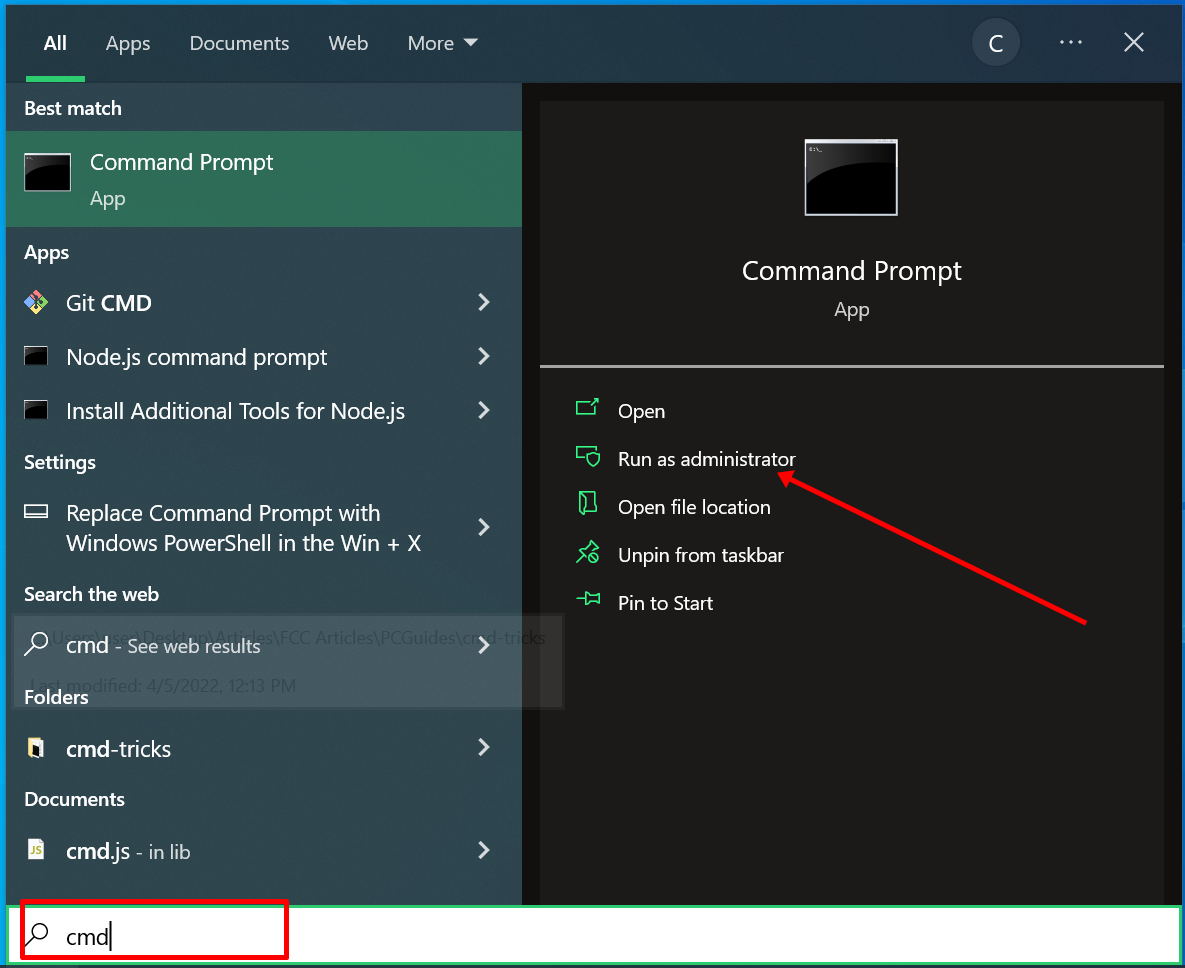
This interface of widows (super button and write command prompt )
SOrtcut virush removed
# Fixing shortcut viruses or hidden files on a drive (like a USB/Pendrive).

---

### **1. First Command:

`DEL *.LNK`**

#This command deletes all files with the **.lnk** extension in your current directory.
#* **Purpose:** Shortcut viruses often hide your original folders and create fake shortcuts with the same names. This command removes those useless shortcuts.

### **2. Second Command:

 `ATTRIB -S -R -H *.* /S /D /L`**

#This is the core command used to restore hidden attributes. Here is a breakdown of what each part does:

#* **ATTRIB:** The command used to display or change file attributes.
#* **-S:** Removes the **System** file attribute.
#* **-R:** Removes the **Read-only** attribute (allowing you to edit or delete the file).
#* **-H:** Removes the **Hidden** attribute (making the files visible again).
#* **\*.\*:** This wildcard tells the command to apply to **all files** with **all extensions**.
#* **/S:** Processes matching files in the current folder and all **subfolders**.
#* **/D:** Processes **directories** (folders) as well, not just files.
#* **/L:** Processes the attributes of **symbolic links** rather than the target of the links.


---
### **Step-by-Step Solution (How to Apply It)**

If your USB drive (for example, **Drive G:**) is infected by a shortcut virus or your files have disappeared, follow these steps:

1.  **Open Command Prompt:** Press `Windows + R` on your keyboard, type **cmd**, and press **Enter**.
2.  **Select Your Drive:** Type your drive letter followed by a colon (e.g., `G:`) and press **Enter**.
3.  **Delete Shortcuts:** Type the following command and press **Enter** to remove all fake shortcut files:
    ```cmd
    del *.lnk
    ```
4.  **Restore Hidden Files:** Type the exact command from your second image and press **Enter**:
    ```cmd
    attrib -s -r -h *.* /s /d /l
    ```


---

### **Important Warning:**
* **Be Careful with Drive Letters:** Ensure you have selected the correct drive (like G:, H:, or F:).
* **Avoid Drive C:** Never run the `attrib` command with these parameters on your **C: drive**, as it could expose or modify critical Windows system files, potentially making your computer unstable.
help in command prompt
help
The Command Prompt as an Administrator
Start-Process cmd -Verb runAs
Lists All Installed Drivers
driverquery
command to user interface
explorer .
see user home directory
echo~

pwd
Important Note that C:\Windows\System32 that contains
EXE Files: All important programs such as cmd.exe (Command Prompt), taskmgr.exe (Task Manager), and calc.exe (Calculator) are located here.
DLL Files: These are small supporting files without which major software or games cannot run.
Drivers: The files required to operate hardware (such as the mouse, keyboard, and sound) are stored here.
The Kernel: The Kernel or ntoskrnl.exe file from your previous question is also hidden inside this folder. When computer open then firstly run in RAM
Changes the Current Working Directory to the Specified Directory
chdir or cd ## this command comes my exam "goto the directory"
Shows Your PC’s Details
systeminfo
To see Tasklist
tasklist
Shows your PC’s Environment Variables
set // this contains in cmd.ex file not
C:\Users\ug210\Videos>set means
- set is not contains in C:\Users\ug210\Videos and contains in cmd.ex file
Changes the Default Text Shown before Entering Commands
prompt
Important notes
- Customize pat name like C:\Users\ug210\Videos>prompt MyTerminal $G then MyTerminal >
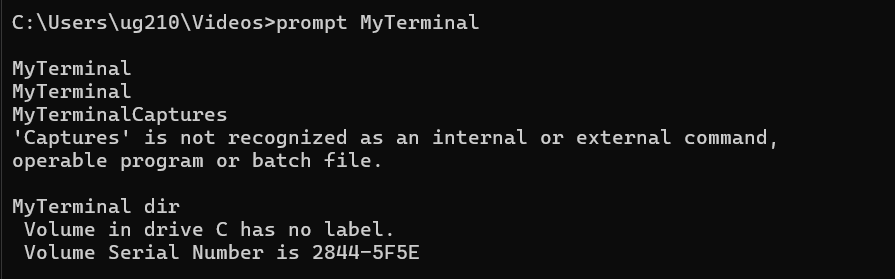
Customization of CMD prompt
Changes the Command Prompt Window Title Using the Format
title Mahibullah
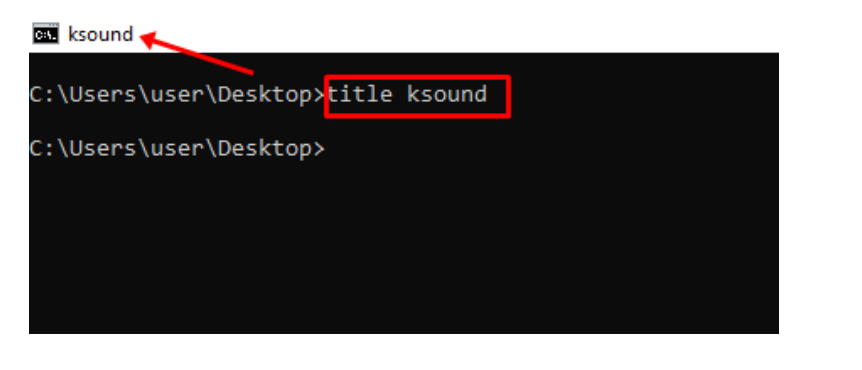
an – Shows Open Ports, their IP Addresses and States
netstat
Ping and tracert
ping google.com ## This command comes in my exam "check your connection to a server"

tracert google.com
Ping (The “Availability” Test): It checks if a specific destination (like Google) is alive and how fast it responds. It only tells you the final result: “Are we connected or not?”
Tracert (The “Path” Map): It shows the entire route your data takes, listing every router (hop) along the way. It helps you identify exactly where a connection fails—whether it’s your home router, your ISP, or an international cable.
Changes the Text Color of the Command Prompt
color /?

color 4F
- Color 4 then only text color change is Red
- Color 4F then only background color change is Red
Shows All Wi-Fi Passwords
for /f "skip=9 tokens=1,2 delims=:" %i in ('netsh wlan show profiles') do @echo %j | findstr -i -v echo | netsh wlan show profiles %j key=clear
– Shows Information about PC IP Addresses and Connections
ipconfig

ipconfig/all

ipconfig /flushdns
System File Checker
sfc /scannow
Controls Configurable Power Settings
powercfg help

powercfg /batteryreport
Lists Items in a Directory
dir ## this command comes in my exam "know what files are are in directory you are in"
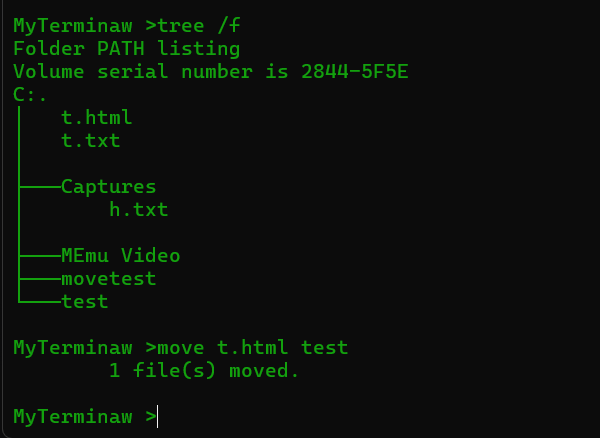
Shows the Tree of the Current Directory or Specified Drive
tree

tree /f
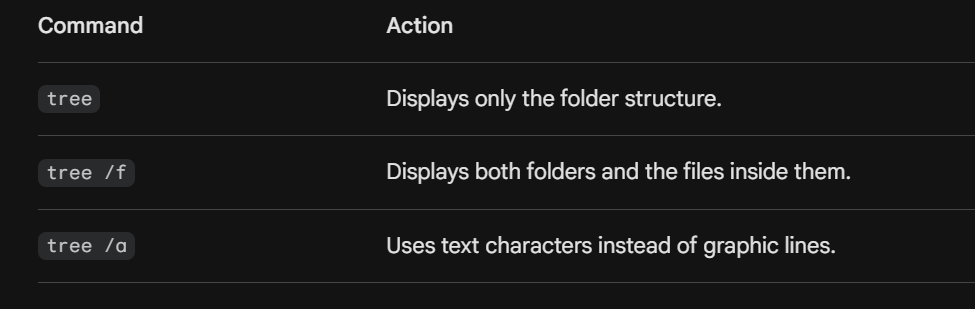
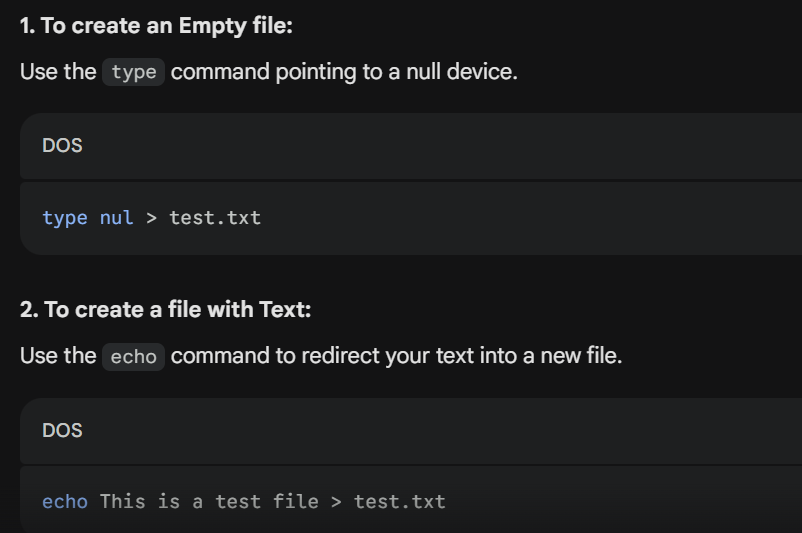
Creating an Empty File
- If you want to create a file without any content (0 bytes), use the type nul command.
ni mohi.txt  ## ni= new item

ni mohi.txt, mohi1.txt
Create newfile with text/data
echo "hello" > mohi.txt ## this comes my exam "move some data, usally text into a file"
Deletes a File
rm mohib.txt
make folder
mkdir folder_name
delete folder
rm folder_name
Detailes in command
man [command] ## This command comes in my exam "To know more about a command and how to use it"
– Logs on to a Website from the Command Line
start https://www.facebook.com
Shows the Version of the OS
ver
Shows Open Programs
tasklist
kills Open Programs
taskkill /pid [number that given in tasklist]
- Process ID (PID) that need for stop program enforcelly .
Show date
date
show time
time
Shows Custom Messages or Messages from a Script or File
echo Hello world

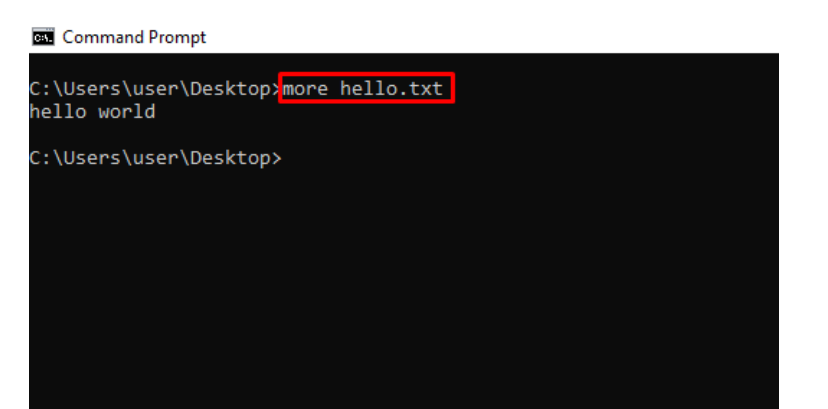
echo Hello world > hello.txt
Shows More Information or the Content of a File
more hello.ttxt
Moves a File or Folder to a Specified Folder
mv test.txt mohi ## This command codme in my exam "move file through the commadn line"

## mv [source] [destination]
See free disk space in my SSD
Get-PSDrive -PSProvider FileSystem ## This command codme in my exam "see the availabe the disk space in each partitionin your system"
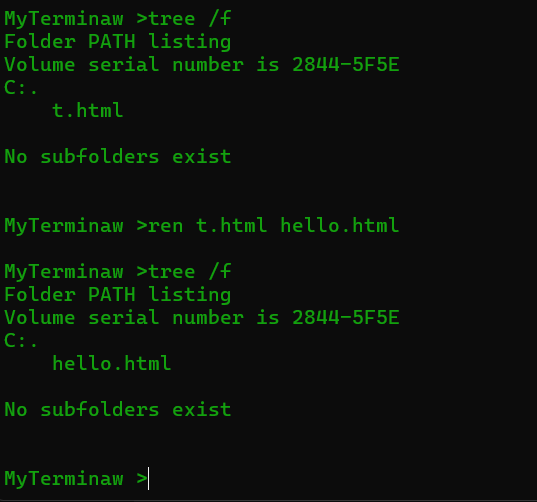
Renames a File with the Syntax
ren test.html hello.html

ren test.html hello.txt
Clears the Command Line
cls
exit Closes the Command Line
exit
Shuts down, Restarts, Hibernates, Sleeps the Computer
shutdown
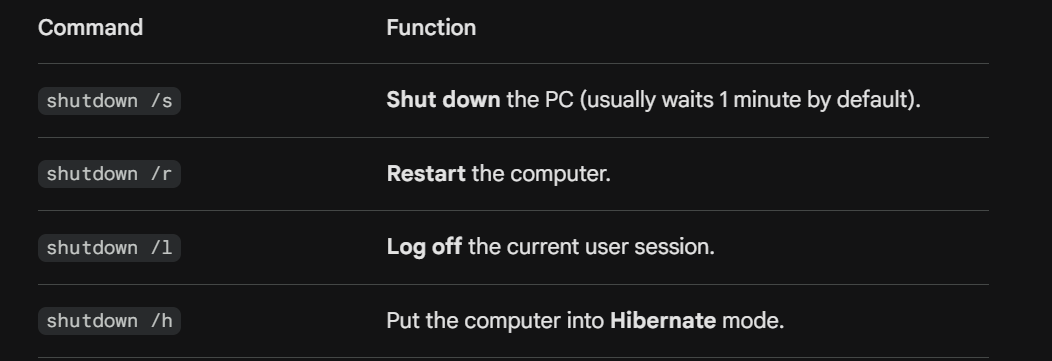
- Advantages of Hibernation
- Resume Work: When you turn your PC back on, you will find all your work (e.g., browser tabs, code editors, or documents) exactly in the state you left them.
- Power Saving: It saves even more power than Sleep Mode because, in Hibernate, the PC consumes no electricity at all.
- Resume Work: When you turn your PC back on, you will find all your work (e.g., browser tabs, code editors, or documents) exactly in the state you left them.
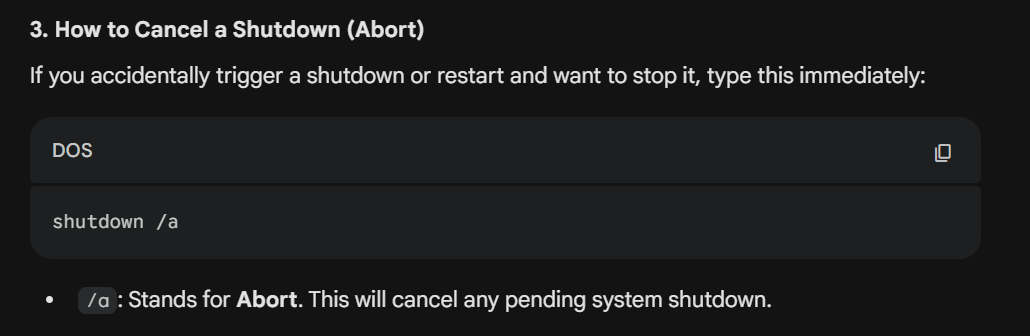
sutdown abort or cancle
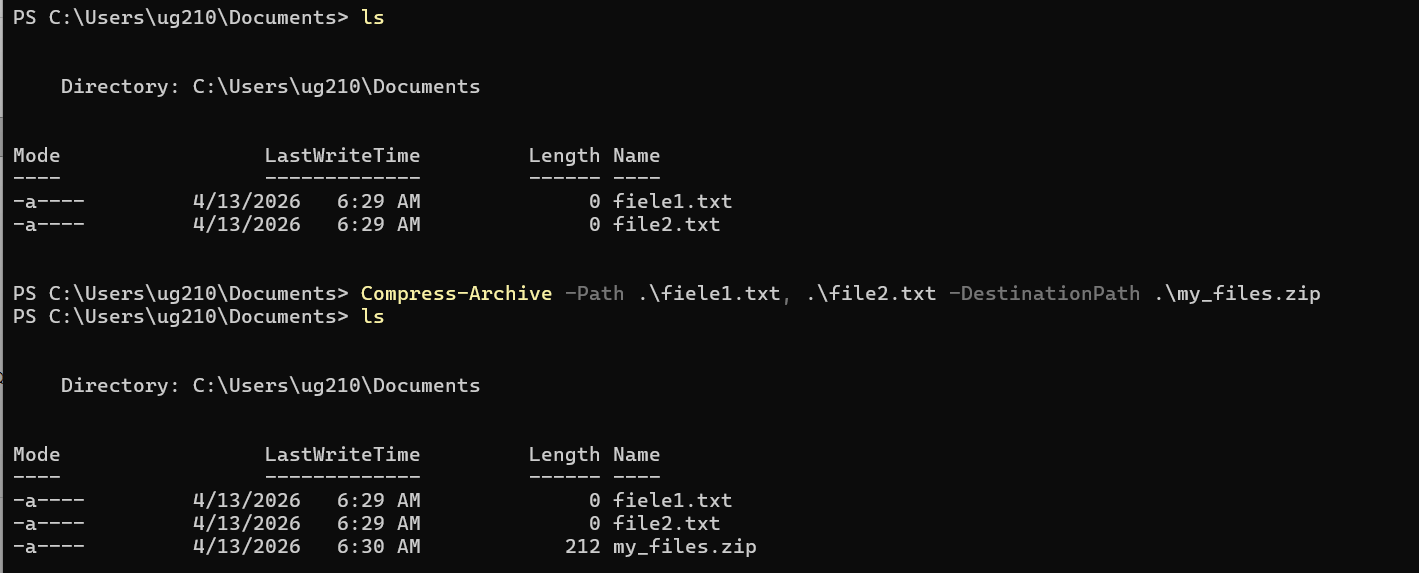
Zip file
disk space in your file
 (Get-Item "file_name/folder_name").Length / 1MB ## This command comes in my exam "know the disk usage of a file in your system

 ## show MB size
-- **Linux command line interface** --
Online practise
free online practice linux command
Find file in linux
locate [filename] ## This command comes in my exam "locate a file in a linux system"
Zip file
zip mohi.zip mohi mohi1 ## This commeand comes in my exam "zip file in your system"

## zip archive_name.zip file1 file2
-- Exam question session(2019-2020) --
1. Running a C/C++ Program in Linux 2. Running a C/C++ Program in windows
// File main.c++

#include <iostream>
using namespace std;

int main() {
    cout << "Hello! It is working now." << endl;
    return 0;
}

// compile

g++ main.c++ -o myprogram

// Run this command

.\myprogram
Command for windows
2. Use the commands to
- i. Show home directory of your user
pwd # Print Working Directory
- ii. know what files are in the directory you are in
dir
- iii. go to a directory
cd FolderName
- iv. create a folder or a directory
mkdir NewFolder
- v. delete files and directories
rm fileName / Foldername
- vi. create a file
ni filename.txt
- vii. To know more about a command and how to use it
man [command]
- viii. make a file executable and to change the permissions granted to it in Linux
- ix. move files through the command line
move source_file destination_folder
x. locate a file in a Linux system
xi. check your connection to a server
ping google.com
- xii. move some data, usually text into a file
echo "Your text here" > filename.txt
Command for Linux
2. Use the commands to
- i. Show home directory of your user
echo $HOME
- ii. know what files are in the directory you are in
ls
- iii. go to a directory
cd folder_name
- iv. create a folder or a directory
mkdir folder_name
- v. delete files and directories
rm fileName / Foldername
- vi. create a file
touch filename.txt
- vii. To know more about a command and how to use it
man ls
- viii. make a file executable and to change the permissions granted to it in Linux
chmod +x filename.sh
- ix. move files through the command line
move source_file destination_folder
- x. locate a file in a Linux system
locate filename
- xi. check your connection to a server
ping google.com
- xii. move some data, usually text into a file
echo "Your text here" > filename.txt
Commad for windows
3. Use the commands to
- v. see the available disk space in each of the partitions in your system
 Get-PSDrive -PSProvider FileSystem

 Get-Volume
- viii. any command to be done with administrative or root privileges
Start-Process cmd -Verb runAs
- ix. compress files into a zip archive
Compress-Archive -Path .\fiele1.txt, .\file2.txt -DestinationPath .\my_files.zip
- x. know the disk usage of a file in your system
dir filename.txt
Commad for linux
3. Use the commands to
- v. see the available disk space in each of the partitions in your system
df -h # -h Human redable
- viii. any command to be done with administrative or root privileges
Start-Process cmd -Verb runAs
- ix. compress files into a zip archive
zip archive_name.zip file1.txt file2.txt
# (FOr folder zip -r used )
- x. know the disk usage of a file in your system
du -sh filename.txt
-- Exam qustion 2020-2021 --
- Implement Peterson’s solution for ensuring synchronization.
#include <iostream>
#include <thread>
#include <atomic>

using namespace std;

bool flag[2] = {false, false}; // প্রসেস ক্রিটিক্যাল সেকশনে ঢুকতে চায় কি না
int turn = 0;                  // কার পালা

void process(int id) {
    int other = 1 - id;

    // Entry Section
    flag[id] = true;
    turn = other;
    while (flag[other] && turn == other); // Busy waiting

    // Critical Section
    cout << "Process " << id << " is in Critical Section." << endl;

    // Exit Section
    flag[id] = false;

    // Remainder Section
    cout << "Process " << id << " left Critical Section." << endl;
}

int main() {
    thread t1(process, 0);
    thread t2(process, 1);
    t1.join();
    t2.join();
    return 0;
}
- Implement mutex locks to ensure synchronization.
#include <iostream>
#include <thread>
#include <mutex>

using namespace std;

mutex mtx; // Mutex object
int counter = 0;

void increaseCounter(int id) {
    mtx.lock(); // Lock করা হচ্ছে

    // Critical Section
    counter++;
    cout << "Process " << id << " updated counter to: " << counter << endl;

    mtx.unlock(); // Unlock করা হচ্ছে
}

int main() {
    thread t1(increaseCounter, 1);
    thread t2(increaseCounter, 2);
    t1.join();
    t2.join();
    return 0;
}
- Semaphore implementation to solve busy waiting problem.
#include <iostream>
#include <thread>
#include <semaphore> // C++20 standard

using namespace std;

counting_semaphore<1> sem(1); // Binary semaphore (1 মানে unlock)

void task(int id) {
    sem.acquire(); // wait() অপারেশন - লক না পেলে স্লিপে চলে যাবে (No Busy Waiting)

    // Critical Section
    cout << "Process " << id << " is performing task." << endl;

    sem.release(); // signal() অপারেশন - কিউ থেকে অন্য প্রসেসকে জাগিয়ে তুলবে
}

int main() {
    thread t1(task, 1);
    thread t2(task, 2);
    t1.join();
    t2.join();
    return 0;
}
SET-B (One option from 4-5; 6 is mandatory)
4. Write a code to demonstrate how to create and start Python’s/Java threads using the threading module.
It runs a function print_name that prints a name along with some arguments. This example creates two threads, starts them using the start() method, and waits for them to complete using the join() method. [04]
5. Write a code to demonstrate how to use Python’s/Java threading module to calculate the square and cube of a number concurrently.
Two threads, t1 and t2, are created to perform these calculations. They are started, and their results are printed in parallel before the program prints “Done!” when both threads have finished. Threading is used to achieve parallelism and improve program performance when dealing with computationally intensive tasks. [04]
6. [windows Commands Task] [04]
- I. Displays information about files in the current directory.
dir
- II. Create a directory with own student name in which create a file after this create also directory on home directory. Copy the previous created file on home directory.
# 1. Create a directory with your own name:
mkdir YourName

# 2. Enter that directory and create a new file:
cd YourName
ni myFile.txt

# 3. Return to the Home Directory and create a new folder there:
cd ~
mkdir HomeBackup
(Note: cd ~ is a shortcut that takes you directly to the root folder of your current user profile.)

# 4. Copy the previously created file to the new folder in the Home Directory:
cp "$HOME\YourName\myFile.txt" "$HOME\HomeBackup\"
- III. To navigate between different folders.
cd folder_name
- IV. Removes empty directories from the directory lists.
rd folder_name

rmdir folder_name
- V. In file copy/cut and paste.
copy source_file.txt destination_folder

move source_file.txt destination_folder
- VI. Download files from the internet.
curl "https://facebook.com" -o "facebook1.html"
- VII. Displays the current users name.
whoami
- VIII. View Calendar in terminal.
Get-Date
- IX. Check the details of the file system.
fsutil fsinfo drives
- X. Check the lines, word count, and characters in a file using different options.
Get-Content filename.txt | Measure-Object -Line -Word -Character
6. [Linux Commands Task] [04]
- I. Displays information about files in the current directory.
- II. Create a directory with own student name in which create a file after this create also directory on home directory. Copy the previous created file on home directory.
- III. To navigate between different folders.
- IV. Removes empty directories from the directory lists.
- V. In file copy/cut and paste.
- VI. Download files from the internet.
curl -O URL_HERE
VII. Displays the current users name.
VIII. View Calendar in terminal.
cal
- IX. Check the details of the file system.
df -h
- X. Check the lines, word count, and characters in a file using different options.
wc filename.txt

# only line: wc -l filename.txt

# only woed: wc -w filename.txt

# only character : wc -m filename.txt